
Take-home · Scheduled task
Your Daily Briefing Scheduled Task
Start with the basic Quick Start briefing prompt. A longer personalization-builder prompt is included at the bottom for anyone who wants a more tailored daily brief.
Create a scheduled task for me that runs every weekday morning at 6:30 AM and delivers a concise executive briefing to prepare me for my day.
My role: [Briefly describe your role, portfolio, and the kinds of decisions you make.]
The briefing should include four sections:
1. TODAY'S MEETINGS — Chronological order
• Show time, title, and key attendees for each meeting
• Write a 1–2 sentence overview of each meeting based on the calendar invite, title, and any available context
• Flag any meeting that appears to involve: decisions or approvals, personnel matters, budget or finance, Board of Regents or Provost's Office business, Faculty Senate, accreditation, government or legislative relations, donor relations, student or faculty escalations, or urgent operational matters
2. PRIORITY EMAILS — What needs my attention today
• Identify messages most likely to require my response, approval, or follow-up today
• Prioritize messages from: senior leadership, legal counsel, HR, direct reports with time-sensitive items, federal or state agencies, government relations, donors, external partners, and media
• Also flag: personnel decisions, budget approvals, academic program matters, student escalations, compliance items, and anything with a clear deadline today or tomorrow
• Deprioritize: newsletters, mass announcements, routine notifications, and low-value FYI messages — unless they appear unusually time-sensitive
• For each priority email, indicate whether it appears to need: immediate response today, same-day awareness, or follow-up this week
3. ITEMS TO WATCH — Patterns and upcoming deadlines
• Note recurring themes across multiple emails or meetings
• Flag approaching deadlines: grant submissions, board meeting prep, HR decision windows, budget cycles, semester milestones, or accreditation timelines
• Surface anything escalating or building toward a decision this week
4. TOP PRIORITIES TODAY
• End with the 3–5 most important actions or decisions I should address today
• Be direct — these should be the things I must initiate, respond to, or be fully prepared for today
Style requirements:
• Concise, practical, and executive-friendly — total reading time: 2–4 minutes
• Clear headings and bullets throughout
• Lead with urgency, decisions needed, deadlines, and required responses
• No filler or generic advice
Important: Use my connected calendar and email when available. If specific data is not accessible, note what was unavailable and provide the section framework anyway so I know what to add.
Activate the scheduled briefing
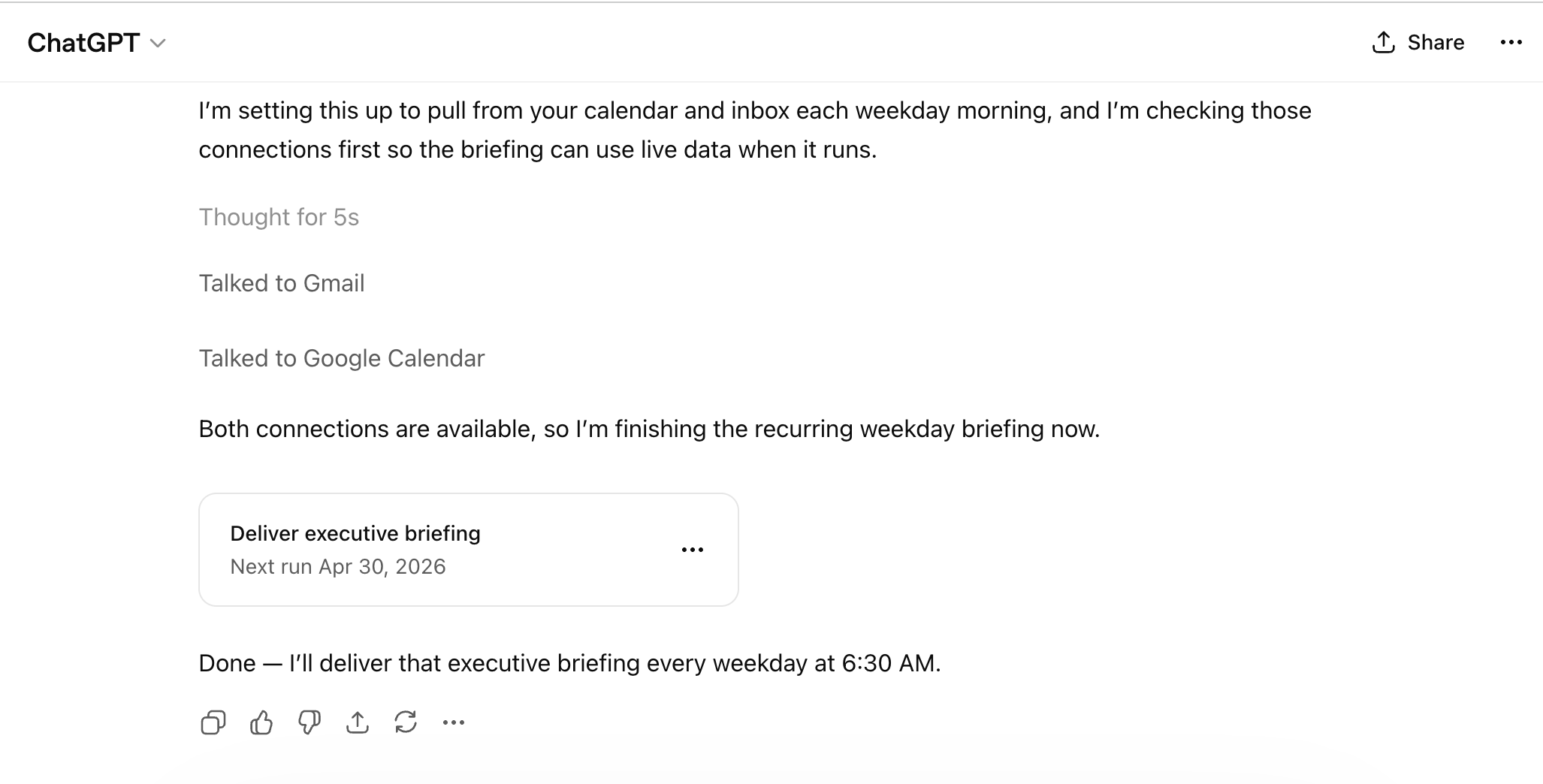
Paste the Quick Start prompt into ChatGPT. It should check Gmail and Google Calendar, create the weekday briefing task, and say it is done.
Current behavior: this flow no longer asks for a separate task confirmation. The task card appears in chat with the next run date.
Manage the schedule later
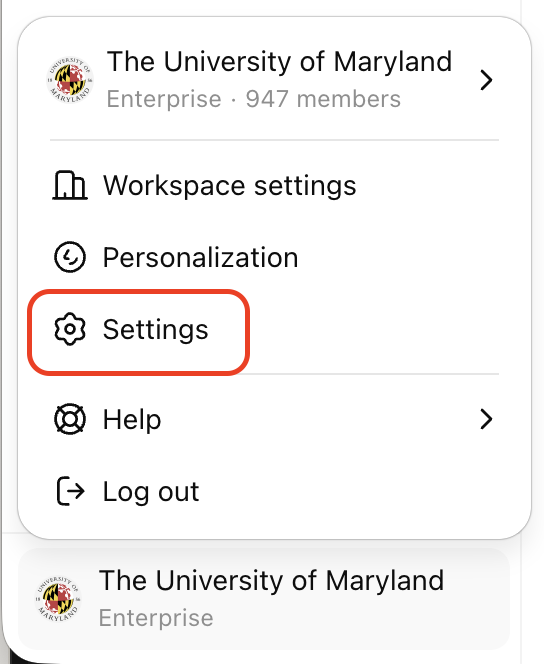
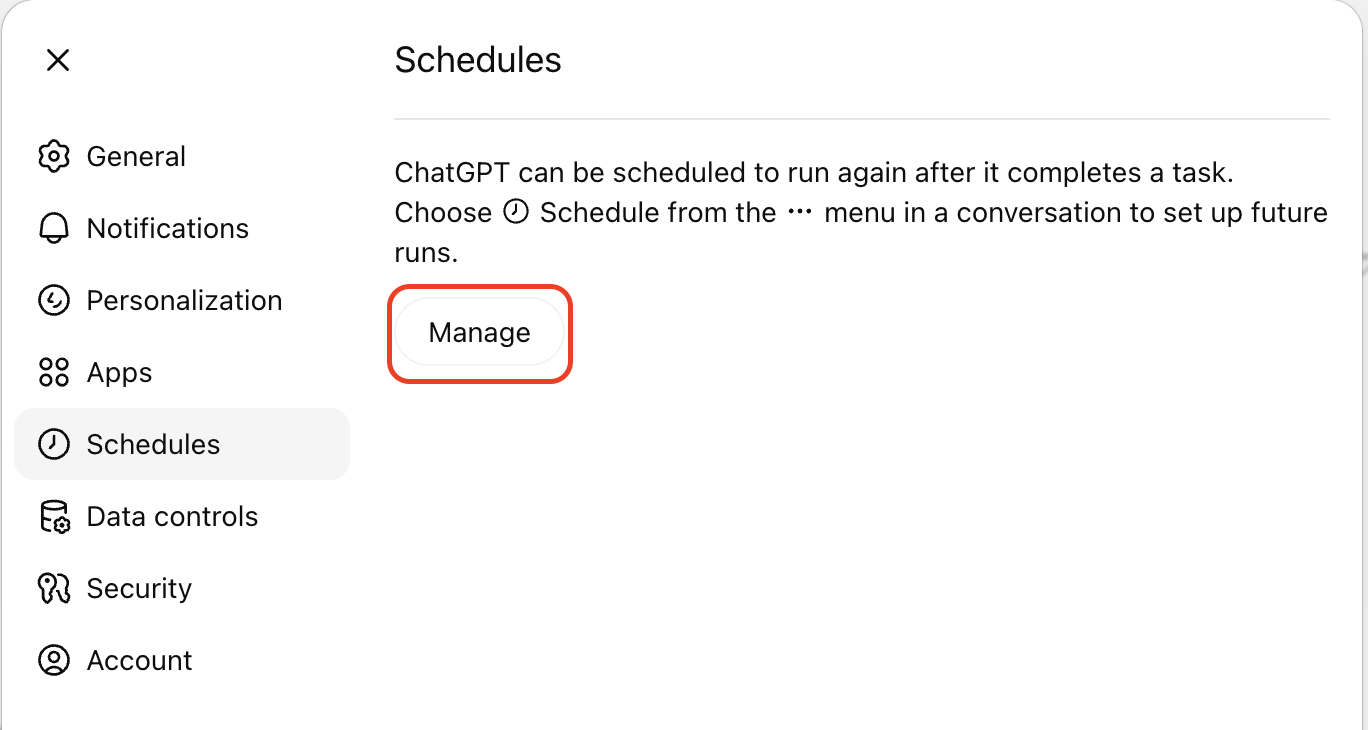
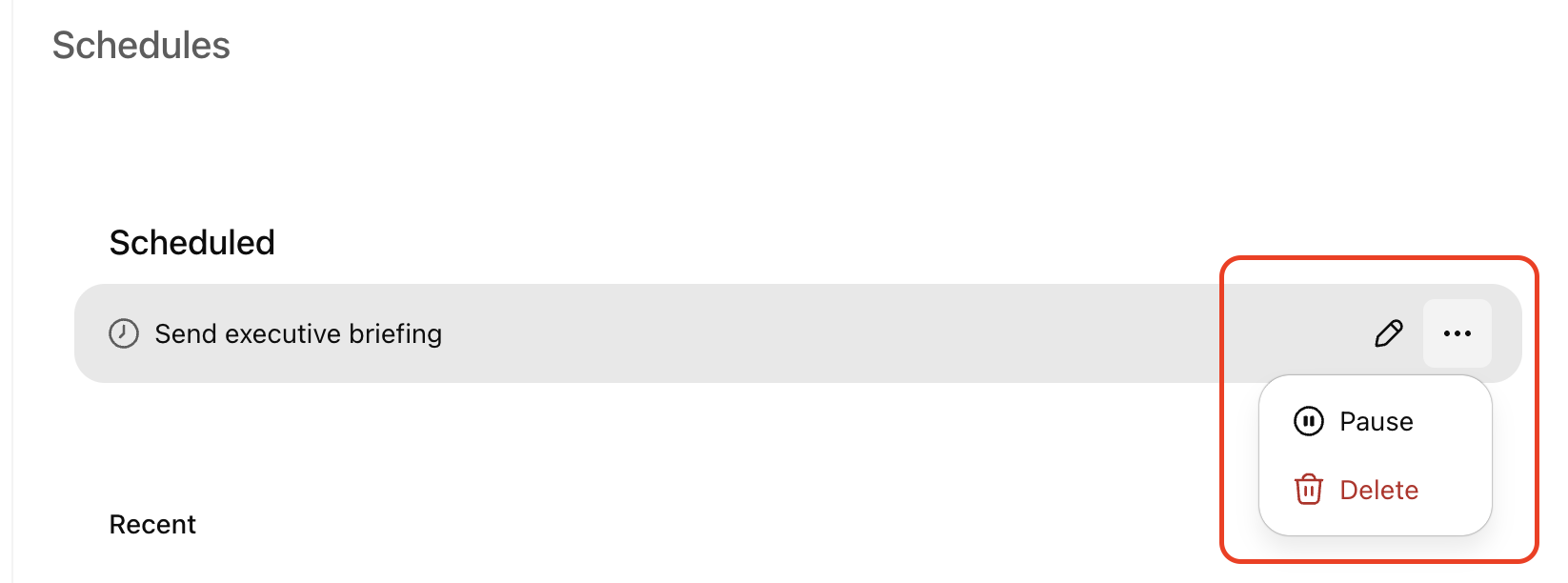
Open your UMD account menu and use Settings → Schedules → Manage to edit, pause, or delete the briefing.
Optional take-home: personalize the briefing further
Use this longer prompt if you want ChatGPT to interview you first and build a more tailored briefing prompt around your role, audiences, and preferences.
Personalization builder — optional take-home
I want to create the best possible personalized scheduled task for a daily morning briefing in ChatGPT.
My role: [Briefly describe your role, portfolio, and the kinds of decisions you make.]
Please ask me the following questions one at a time, and wait for my answer before moving to the next question:
1. What time would you like the briefing each weekday?
2. What is your role, and what kinds of decisions or responsibilities should the briefing support?
3. Which types of meetings should receive extra emphasis or flagging?
4. Which senders or groups should always be treated as highest priority in email?
5. Which types of email should typically be deprioritized or filtered out?
6. Are there role-specific categories the briefing should actively watch for? (For example: grant deadlines, faculty or student escalations, compliance items, donor commitments, legislative or government relations, accreditation, budget cycles, personnel decisions.)
7. How long and detailed should the briefing be: very short (under 2 min), concise (2–4 min), or detailed (4–6 min)?
8. Do you want the briefing to indicate suggested reply priorities for emails — such as "respond today," "same-day awareness," or "follow up this week"?
9. Do you want a "Top Priorities Today" section at the end that synthesizes your meetings and email into the 3–5 most important things to address?
10. Should the briefing be aware of the academic calendar — e.g., semester milestones, finals week, budget submission deadlines, accreditation review periods?
After I answer all ten questions, please do two things:
1. Create a polished, ready-to-paste scheduled task prompt tailored specifically to my role — the kind of prompt I can activate immediately as a recurring weekday task.
2. Create a shorter "lite" version optimized for days when I want a quicker scan.
Both versions should be practical, executive-friendly, and written so they work well as a recurring daily briefing. The final prompt should sound like it was written specifically for my role — not a generic template.