
Email Style Exercise
Build a reusable writing profile from real sent email so ChatGPT can draft in your voice. The full exercise is embedded below so participants can complete it from this custom page.
- A personalized writing style guide based on your actual emails
- A reusable prompt that makes ChatGPT draft in your voice
- Your profile saved in a Project for ongoing use
- A compact daily drafting prompt you can use right away
- Open chatgpt.com and sign in with your UMD credentials
- If email isn't connected, copy 10–15 recent sent emails to paste in
- Think about 2–3 audiences you write for most often
Go to chatgpt.com and sign in using your UMD email credentials. Make sure you're in the UMD workspace, not a personal account, before you create the project.

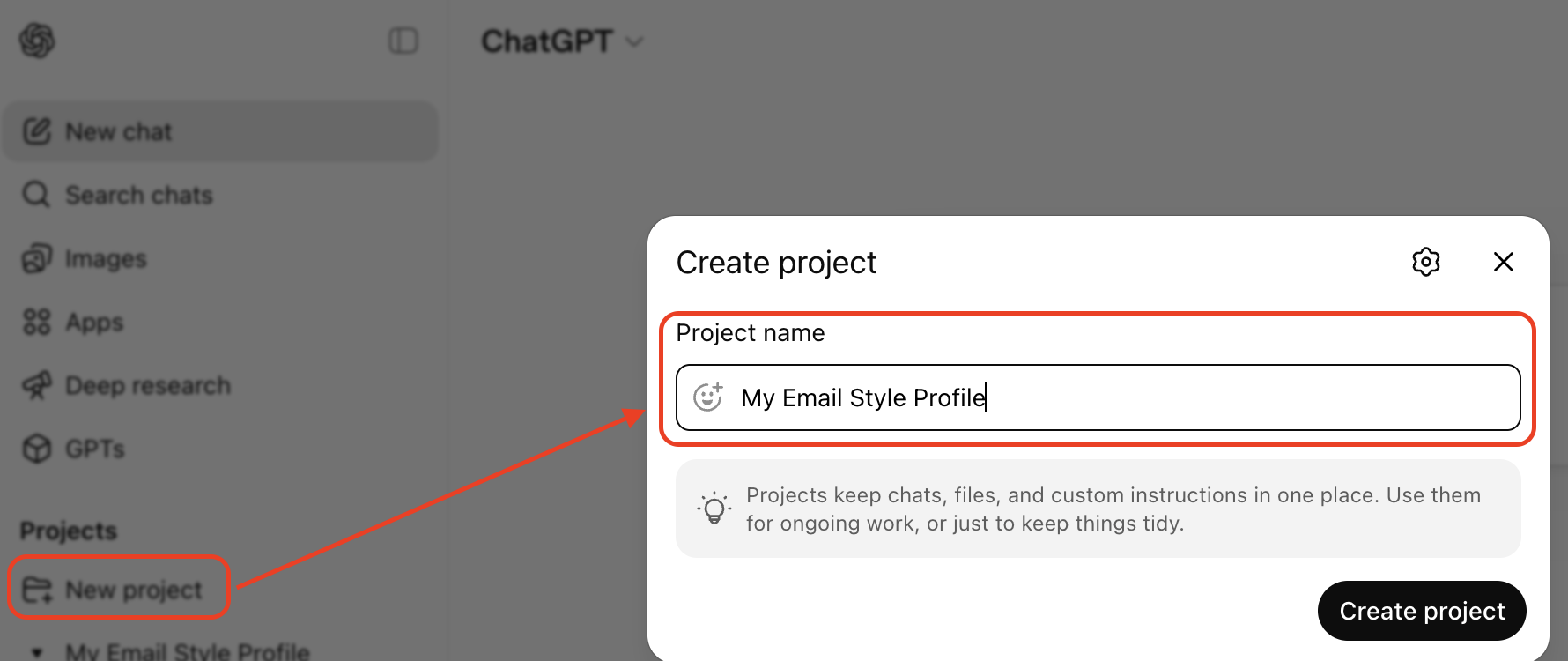
Click New project in the left sidebar and name it something like "My Email Style Profile." Projects keep your style guide and related conversations together, and they allow you to attach persistent instructions that apply to every chat within the project.
This is the most durable way to save your profile — it stays organized and won't get buried in your chat history.
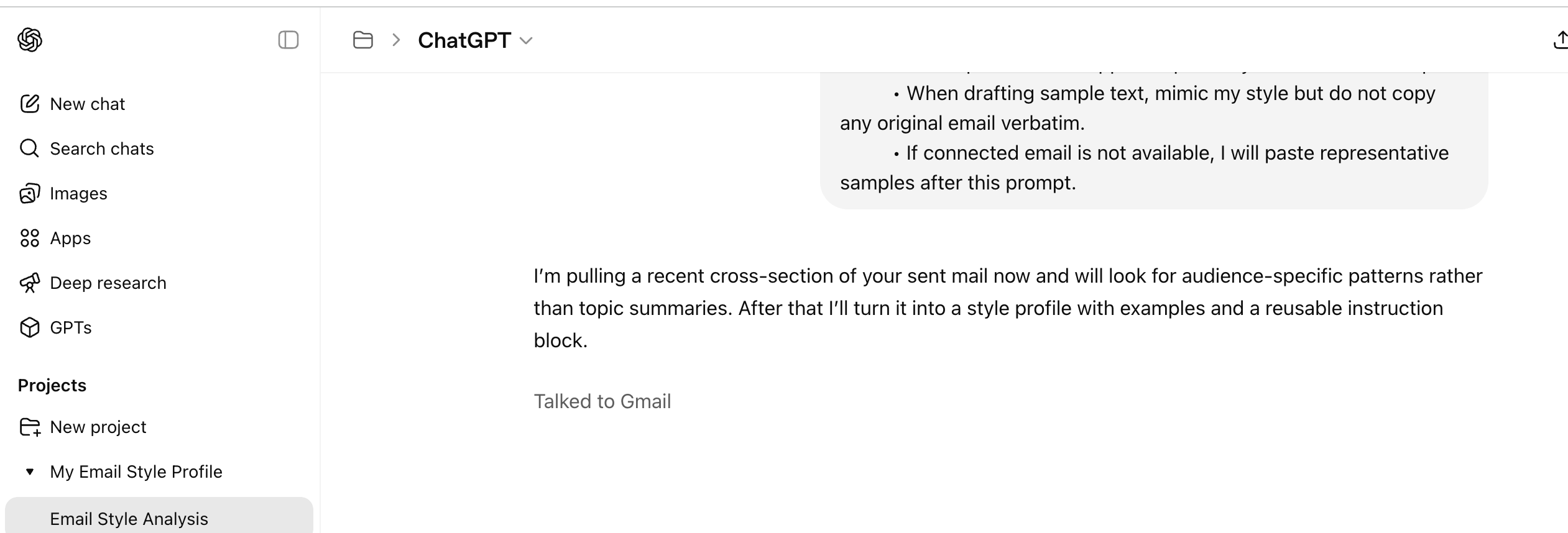
Inside your new project, start a new chat. Copy the prompt below and paste it into the chat input. If ChatGPT has access to your connected mail, it will analyze your sent emails directly. If not, paste 10–20 representative sent emails after the prompt and ask it to analyze those.
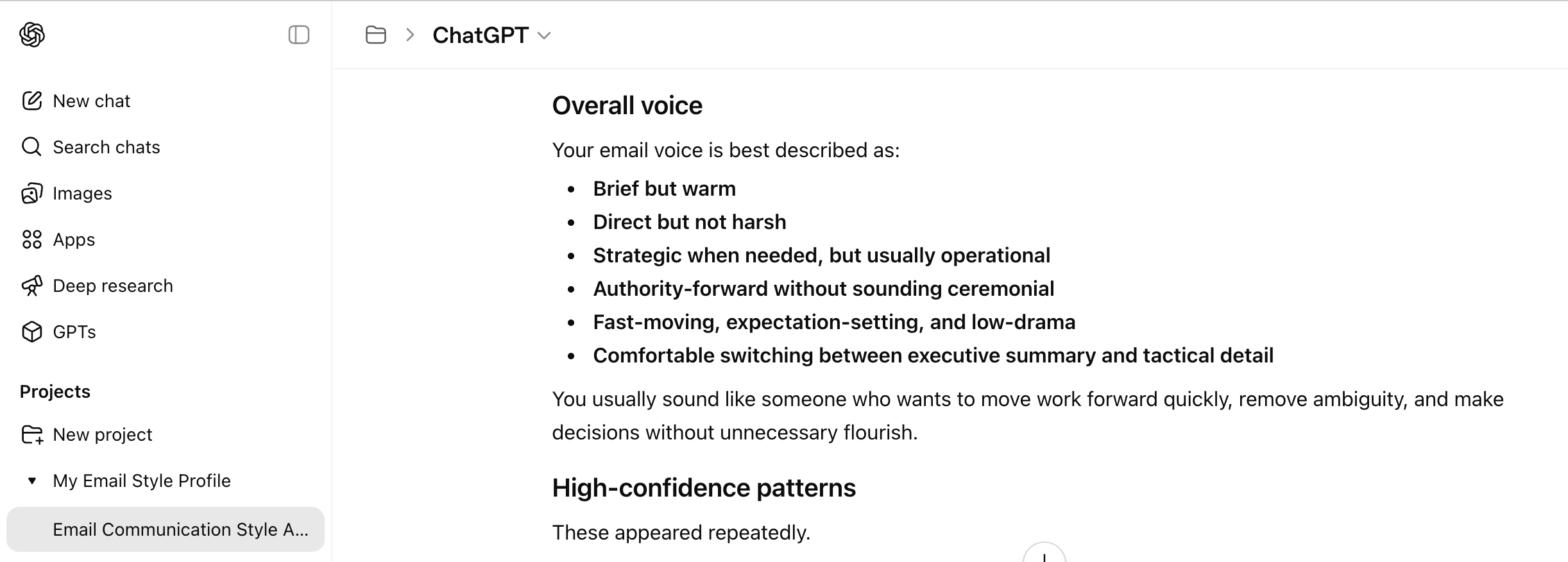
Read through the style guide ChatGPT produces. The goal is not perfection on the first pass — it's a starting point. Look for patterns that ring true, and note anything that feels off or overstated.
Once you're satisfied with the style analysis, paste the following prompt in the same chat. This converts your style guide into formats you can actually save and reuse — a short version for Custom Instructions, a longer one for the Project, and a one-paragraph version to paste before any drafting request.
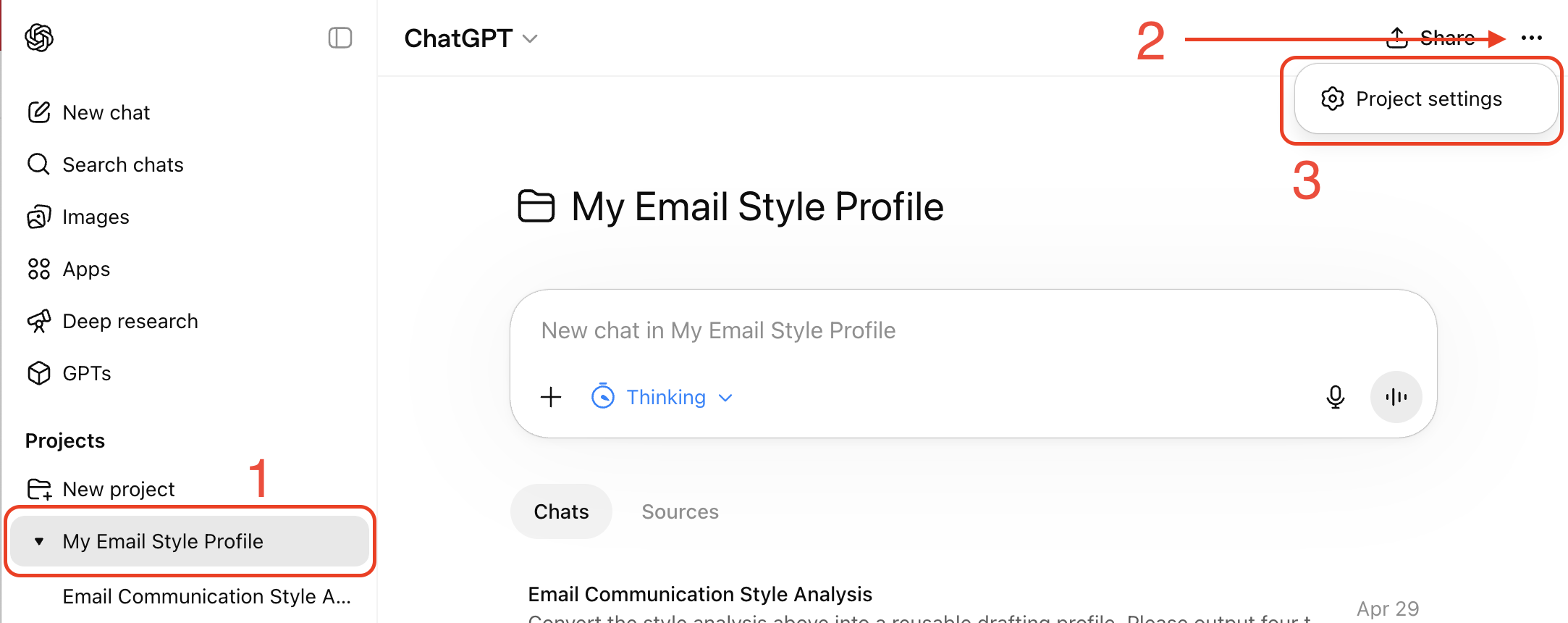
Copy the Long Version from ChatGPT's response. Then open your email style project, click the three-dot menu in the upper-right corner, choose Project settings, and paste the style guide into the Instructions field. From now on, every chat you start inside this project will automatically have your style guide as context.
Optionally, also copy the Short Version into Settings → Personalization → Custom Instructions if you want it available in all your chats, not just this project.
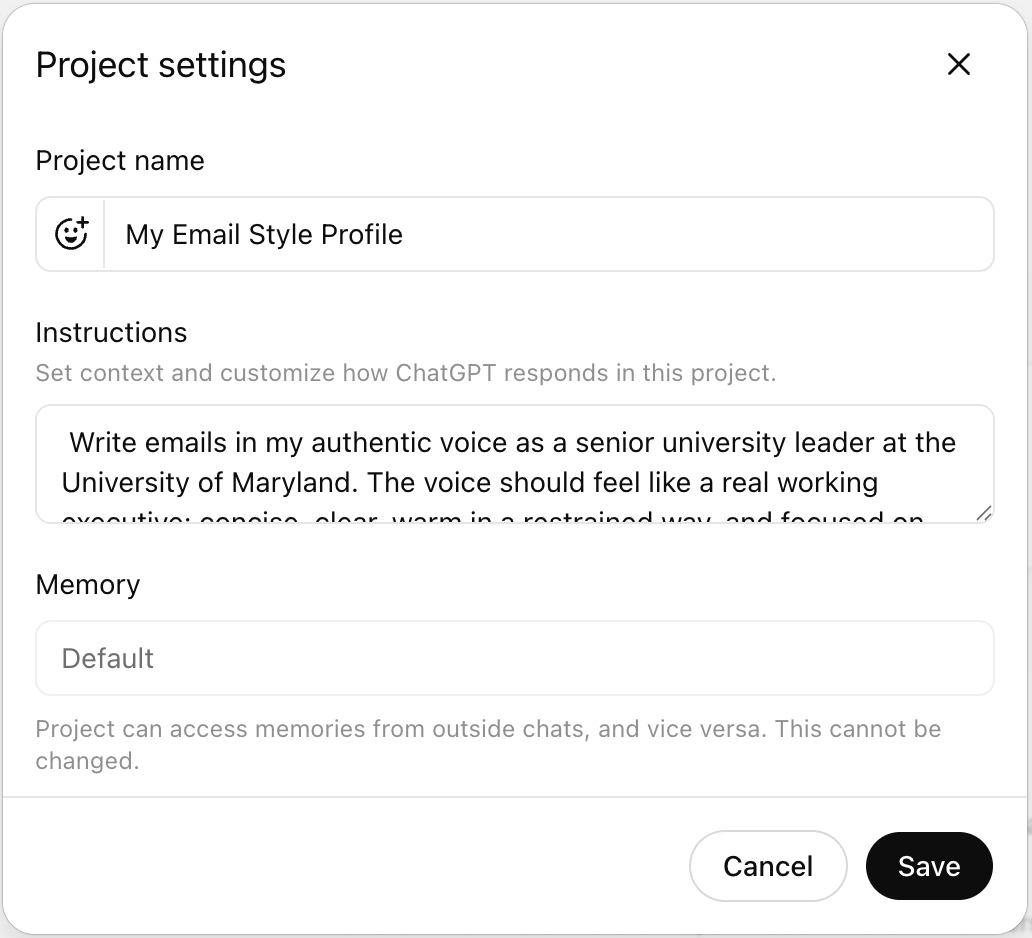
Start a new chat inside the same project. Think of an email you actually need to send this week — a follow-up, a request, an update. Use the compact prompt below to kick it off.
Read the draft. Ask yourself: Does this sound like me? If not, tell ChatGPT what's off. Two or three correction cycles will sharpen the model's feel for your voice quickly.